1. Open Trimble Business Center and click "New Project"

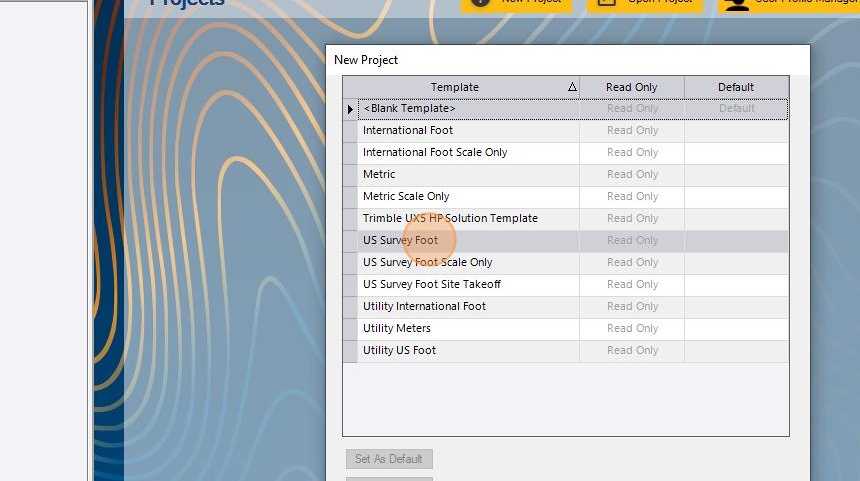
2. Select the appropriate units
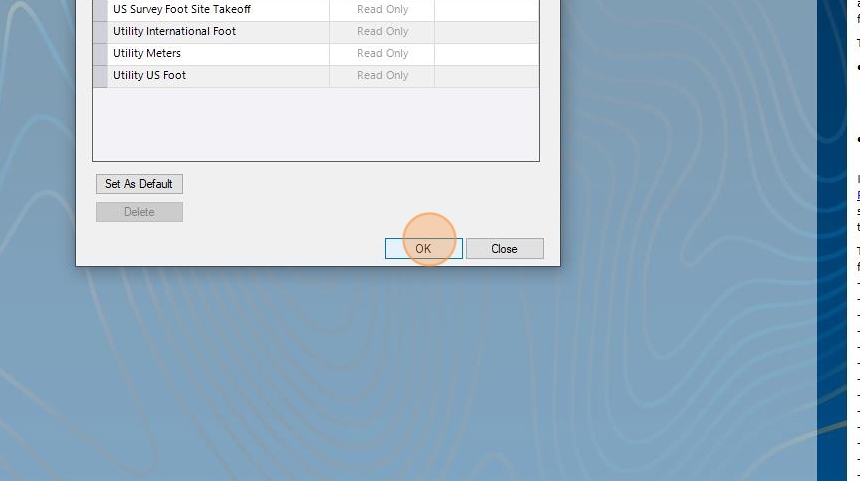
3. Click "OK"
Alert: You must set the coordinate system in Trimble Business Center before importing the point cloud. Setting it after could result in a horizontal or vertical shift in the dataset.
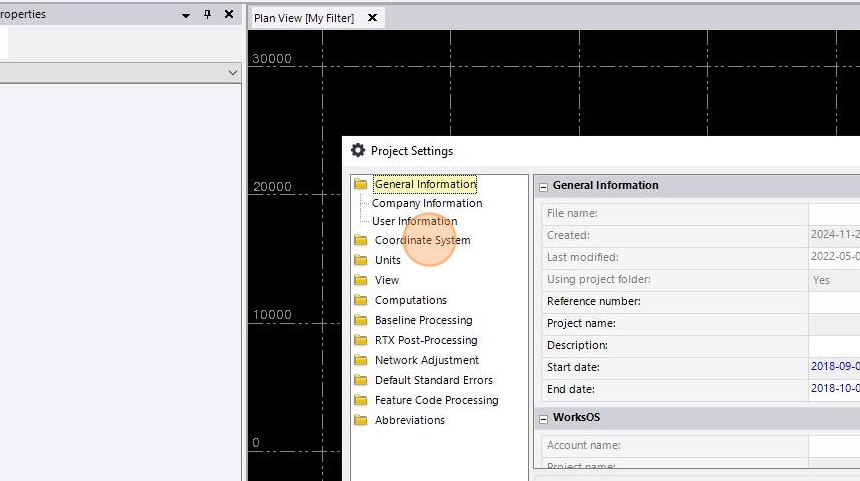
4. Click "Project Settings"

5. Click "Coordinate System"
6. Click "Change ..."

7. Click "Search by name, country, or EPSG ID:"
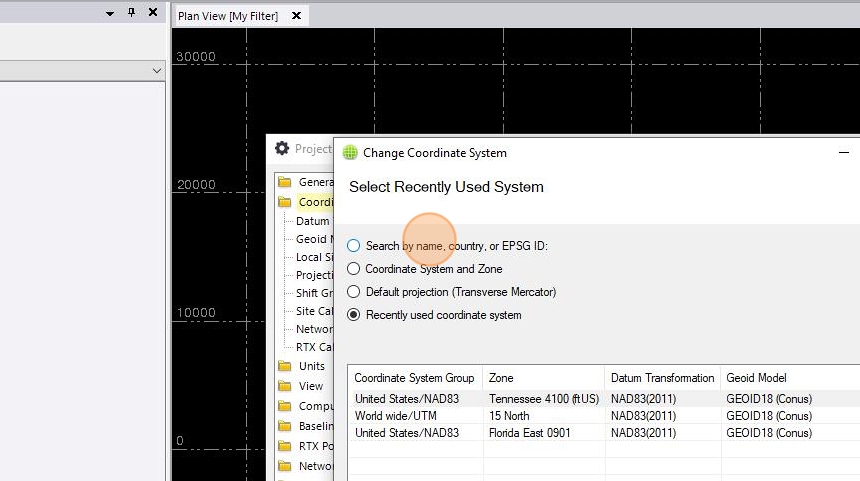
8. Select the same coordinate system that you have set your Looq site to be.

9. Click "Next >"

10. Select Geoid Model.

11. Click "Finish"

12. Click "OK"

13. Drag and drop the point cloud that was downloaded from the Looq qApp into Trimble Business Center

14. Select "Georeferenced, grid-scaled point cloud" and click "OK"

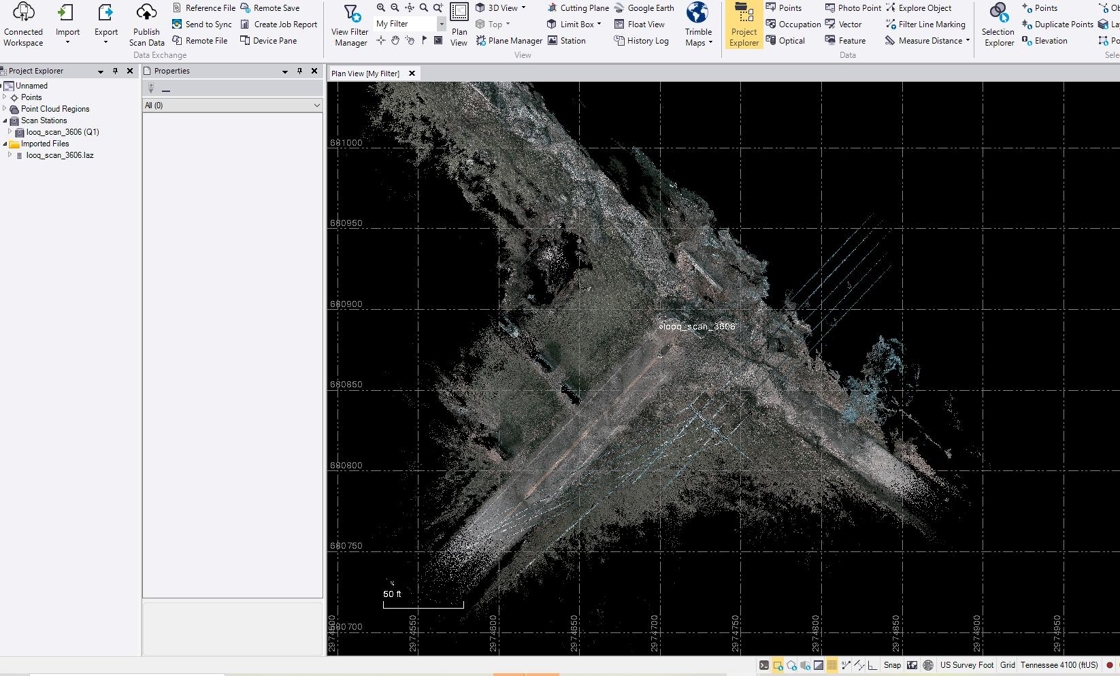
15. Your Looq point cloud should now be visible
16. Drag and drop your ground control file into Trimble Business Center

17. Select the appropriate definition name and Click "Next >"

18. Click "Import"

19. You have successfully imported all of your data! Finally, verify that your Looq point cloud lines up with your field measurements.
