Import Point Cloud to Recap
- Download the point cloud from the Looq portal (laz format is the only option) and save to your computer
- Create a new Recap project and choose “Import Point Cloud”
|
 |
 |
3. Browse to and select the saved laz file to import.
4. Select the Advanced tab and set both the Current and Target coordinate system to the same projection that was used in the Looq site. You can enter the EPSG code directly into the coordinate system fields in order to choose from the list.
In this example, we used EPSG code 6426 for NAD83(2011) California State Plane VI (US Survey Feet).

5. Press the “Import Files” button and Index the scans.
6. Save the Recap project.
Open Recap Project in Civil3D
-
Create a new Civil3D file with the correct drawing template. Be sure to pay attention to using a Metric or Imperial template
- Set the drawing settings and choose the same coordinate system that was used for the Looq processing and what was set in the Recap file. These coordinate systems should all be the same. Be sure to check the “Scale objects inserted from other drawings” and “Set AutoCAD variables to match”

3. Ensure the "Units" in Civil3D are set to the proper insertion scale based on your coordinate system.
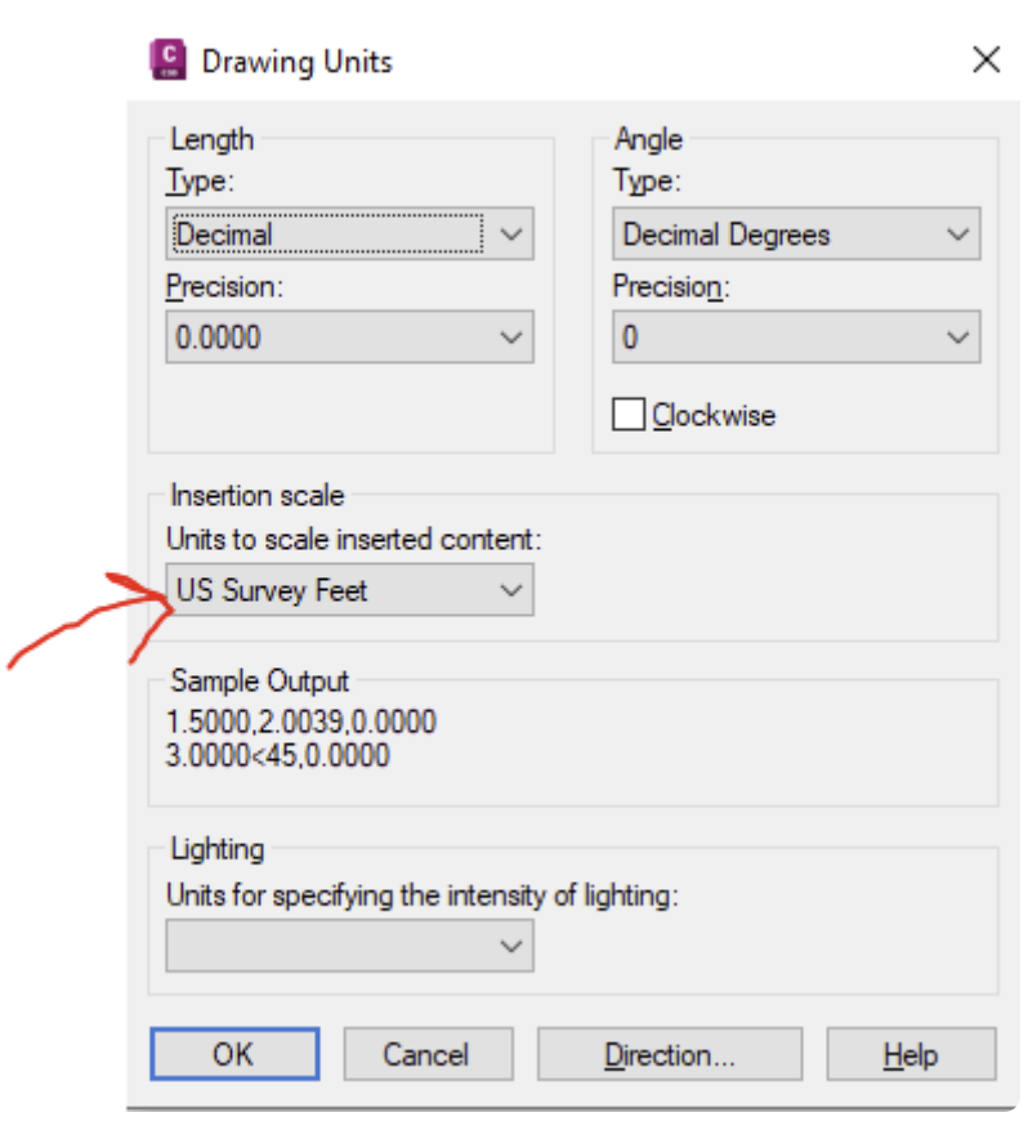
4. Attach the Recap point cloud project (RCP file). Do not attach the RCS files directly.

5. Confirm the proper alignment by importing the ground control file used in the GCP workflow in the Looq platform. Import them as Civil 3D points and confirm the alignment.
