Overview
The Files tab contains information such as date and time for each scan, and controls access to the datasets for download.

Downloading Files
In the Files tab, you will find the option to view and download all of the processed datasets in common formats. Here is a description of each:
- Point Cloud: full point cloud in .LAZ format
- Ortho: top-down/nadir view in .TIF format
- Panoramic Imagery: individual panoramic (360) images in .JPG format
- Track: panoramic image locations (also the path that you walked for that scan) in .GEOJSON format
Click on the download icon beside a scan to download all four datasets, or expand it using the arrow on the left-hand side (shown below) to download a specific item. You can also select the folder icon to navigate inside the associated folder to view the files.
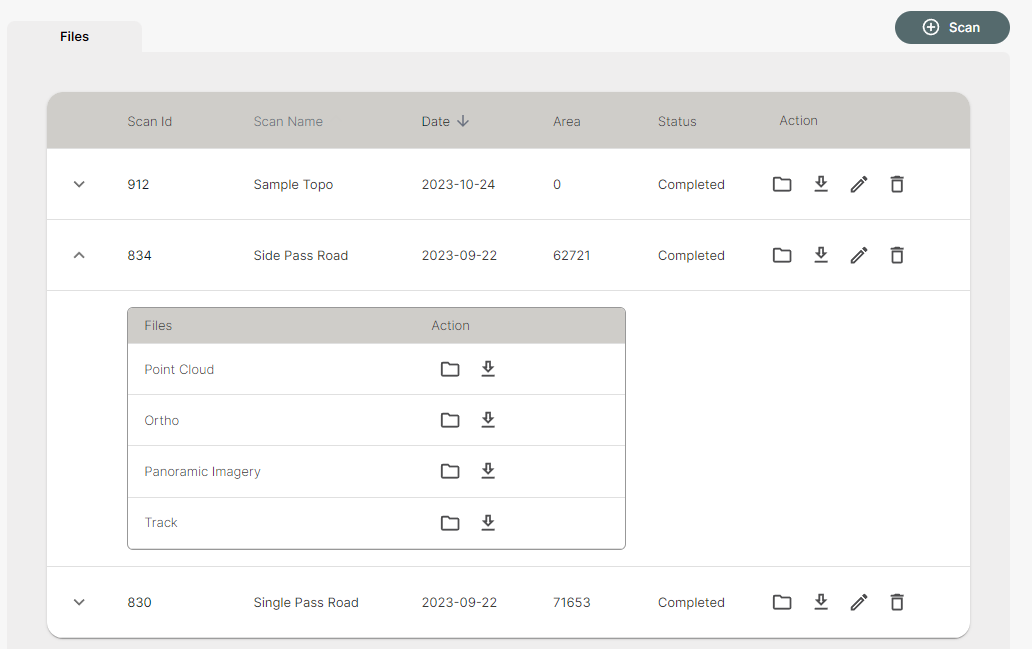
The edit icon opens the scan information which allows you to edit the name, description, and date. Scans can be deleted from this menu, but please note that this action is permanent and cannot be undone.